Category: Tech Reviews | Review
USB-C to HDMI Adapter Review – Does It Actually Work? (Honest Test 2026)
Testing modern USB – C to HDMI Adaptor options for 4K60, 8K120, DP Alt Mode compatibility, and lag-free display output across laptops, phones, and consoles.
For years, connecting modern laptops, tablets, and mobile devices to external displays has felt like navigating a minefield of standards, dongles, and specs. You buy a sleek new laptop, try to connect it to an external 4K monitor or TV, and suddenly face the dread of a “No Signal” prompt or a choppy 30Hz refresh rate. In this comprehensive 2026 review and guide, we test and analyze the modern USB – C to HDMI Adaptor market to answer the critical question once and for all: Does it actually work?
The short answer is yes, but only if you choose the right hardware for your specific hardware configuration. Modern USB – C to HDMI Adaptor units have evolved into active conversion devices capable of delivering 4K at 60Hz, high dynamic range (HDR10 and Dolby Vision), 7.1 surround sound audio, and even cutting-edge 8K at 60Hz or 4K at 120Hz/144Hz via DisplayStream Compression (DSC). However, selecting an underpowered dongle or plugging into a USB-C port that lacks DisplayPort Alternate Mode (DP Alt Mode) will immediately derail your setup. If you want to explore more hardware reviews and gadget teardowns, check out our dedicated Tech Reviews section on TheKZVerse.
How a USB-C to HDMI Adapter Functions (Active vs. Passive Tech)
A standard USB – C to HDMI Adaptor is natively a unidirectional hardware device: it takes DisplayPort video and multi-channel audio signals emitted by a host USB-C or Thunderbolt port and translates them into an HDMI signal that your TV, projector, or monitor can process. It will not work in reverse—meaning you cannot feed an HDMI output from a gaming console or Blu-ray player into a USB-C display without specialized active reverse-converter hardware.
The physical USB-C port on your device is merely an interface shape. What determines whether a USB – C to HDMI Adaptor will output video is the underlying protocol supported by that port. The source port must natively support DisplayPort Alternate Mode (DP Alt Mode), Thunderbolt 3, Thunderbolt 4, or USB4. When plugged into a DP Alt Mode-enabled port, the host device uses dedicated high-speed lanes within the USB-C cable to broadcast native DisplayPort video data. The circuitry embedded within the USB – C to HDMI Adaptor converts these DisplayPort packets into HDMI video and audio signals in real time.
“Virtually every USB-C to HDMI adapter sold today contains an active conversion chipset inside its housing. Pure passive pin-to-pin mapping for HDMI over USB-C is obsolete and rarely supported by host devices.”
Because converting a native DisplayPort signal into an HDMI stream requires continuous mathematical processing by onboard micro-chips, almost every reliable USB – C to HDMI Adaptor operates actively. Basic passive dongles lack processing hardware and rely entirely on host hardware outputting HDMI protocol directly through the pins—a legacy feature that modern manufacturers rarely implement. Consequently, choosing a quality active converter is essential for getting a reliable signal on modern displays.
Key Standards and Protocol Requirements
When selecting a USB – C to HDMI Adaptor, you must evaluate three core technical layers: the host port capabilities (USB-C / Thunderbolt), the DisplayPort Alt Mode specification version, and the target HDMI specification version built into the adapter itself.
USB-C, Thunderbolt 3/4, and USB4 Protocols
Not all USB-C ports are built equal. Budget laptops and entry-level smartphones frequently utilize USB-C ports wired exclusively for power delivery (USB-PD) and USB 2.0 or USB 3.2 Gen 1 data transfer. If a port lacks DP Alt Mode circuitry, plugging in a USB – C to HDMI Adaptor will yield no video signal whatsoever. Conversely, Thunderbolt 3, Thunderbolt 4, and USB4 specifications mandate video output capabilities over USB-C, ensuring 100% compatibility with active video adapters. If you are shopping for new laptop hardware, feel free to check our updates in the Gadgets section.
DisplayPort Alternate Mode (DP Alt Mode) Versions
The DisplayPort Alt Mode standard governs the total signal bandwidth passed from the host device into your USB – C to HDMI Adaptor:
- DP 1.2 Alt Mode: Offers enough raw bandwidth to drive a 4K resolution screen at 60Hz or 1080p up to 144Hz.
- DP 1.4 Alt Mode (with DSC): Supports 4K resolution at 120Hz/144Hz, as well as 8K resolution at 60Hz when paired with Display Stream Compression (DSC). Found in modern high-end PCs, Steam Deck, and flagship laptops.
- DP 2.1 Alt Mode: The latest standard providing massive bandwidth overhead for multi-monitor setups and uncompressed high-bitrate HDR gaming displays.
HDMI Specification Versions (1.4 vs. 2.0 vs. 2.1)
The HDMI output side of the adapter dictates maximum bandwidth to your display. A budget USB – C to HDMI Adaptor limited to HDMI 1.4 caps out at a sluggish 4K at 30Hz or 1080p at 60Hz. Standard HDMI 2.0 adapters unlock smooth 4K at 60Hz and 1080p at 120Hz with HDR10 support. High-end HDMI 2.1 adapters support up to 48 Gbps throughput, unlocking 8K at 60Hz, 4K at 120Hz/240Hz, Variable Refresh Rate (VRR), and Dolby Vision passthrough.
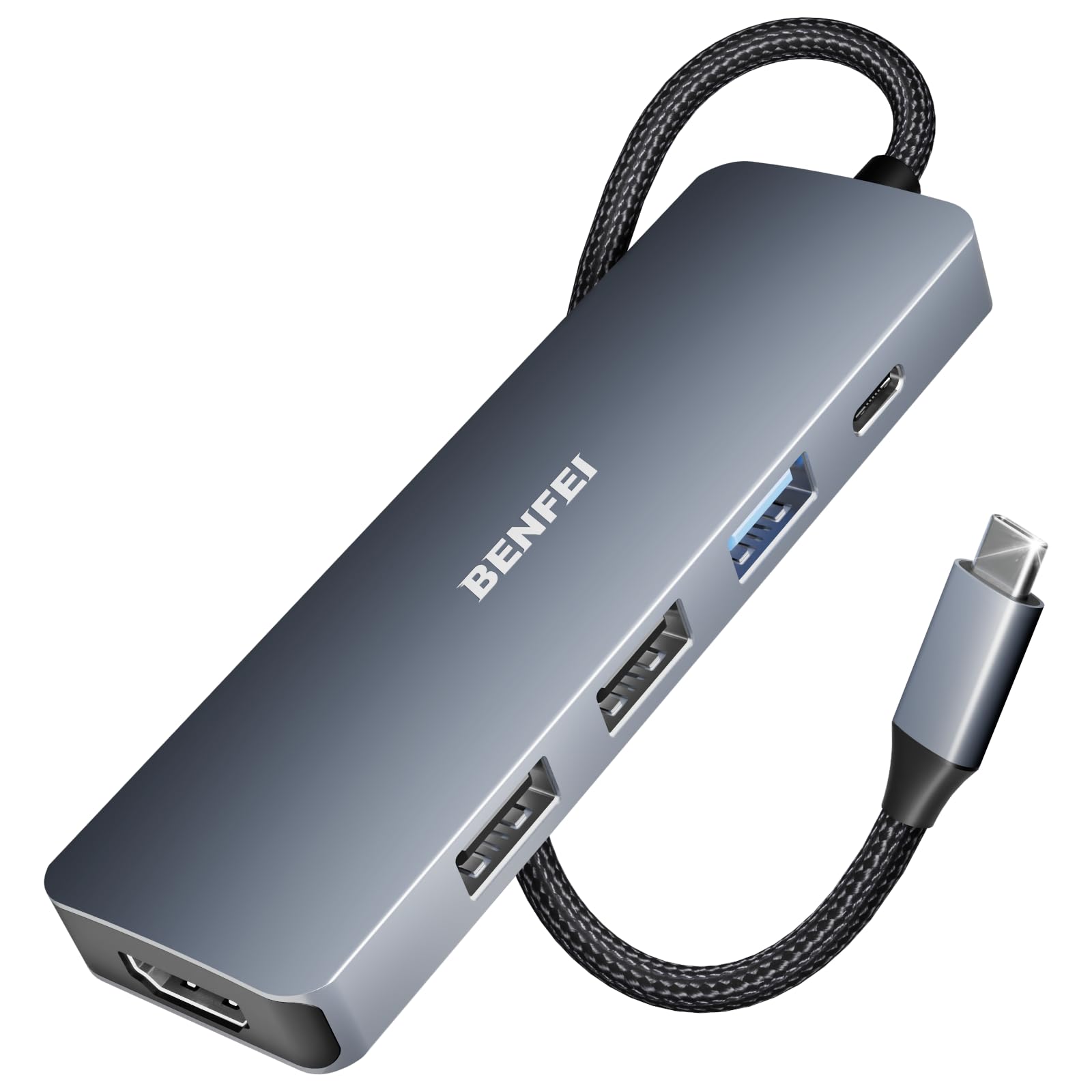
To grab a top-rated HDMI 2.0 or 2.1 certified converter today, explore the current deals online: Check the latest prices on top USB – C to HDMI Adaptors on Amazon.
Supported Resolutions, Refresh Rates, and Performance
Understanding the link between resolution and refresh rate is critical when buying a USB – C to HDMI Adaptor. Below is a detailed breakdown of how different adapter specifications perform across typical desktop, home theater, and gaming setups.
| Adapter Hardware Class | Max Resolution & Refresh | Color Depth & Subsampling | Target Use Case |
|---|---|---|---|
| Basic Dongle (HDMI 1.4) | 4K @ 30Hz / 1080p @ 60Hz | 8-bit SDR (RGB 4:4:4) | Basic office presentations, static displays |
| Standard Mid-Range (HDMI 2.0) | 4K @ 60Hz / 1080p @ 120Hz | 8-bit / 10-bit HDR10 (4:4:4) | Everyday productivity, 4K media streaming |
| High-Performance (HDMI 2.1 w/ DSC) | 8K @ 60Hz / 4K @ 120Hz-240Hz | 10-bit / 12-bit Dolby Vision | High-framerate gaming, professional creative work |
| Multiport Hub (HDMI 2.0 + PD) | 4K @ 60Hz | 8-bit / 10-bit HDR | Laptop docking with simultaneous charging |
| Active Optical Cable (AOC) | 4K @ 60Hz (Up to 50+ feet) | 10-bit HDR10 (Uncompressed) | Long-distance AV conference rooms & stages |
For more detailed gadget comparisons and teardowns, visit our Unboxings category on TheKZVerse.
HDR, High-Bitrate Audio, and Content Protection (HDCP)
Modern multimedia workflows demand more than just sharp pixels; dynamic range, audio passthrough, and Digital Rights Management (DRM) playback integrity are equally vital when deploying a USB – C to HDMI Adaptor.
High Dynamic Range (HDR) & Color Depth
A modern USB – C to HDMI Adaptor supporting HDMI 2.0a or higher passes HDR10 metadata directly to high-dynamic-range TVs and monitors. Premium HDMI 2.1 models add full dynamic metadata support for Dolby Vision and HDR10+, maintaining 10-bit and 12-bit color pipelines at full 4:4:4 RGB chroma subsampling without color compression artifacts.
Multi-Channel Audio Passthrough
Because HDMI carries both uncompressed audio and video on a single cable, an active USB – C to HDMI Adaptor passes digital audio directly from host operating systems to AV receivers or soundbars. Supported audio protocols include 2-channel PCM, 5.1/7.1 multi-channel surround sound, Dolby Atmos, and DTS:X. You must ensure your computer’s audio control panel selects the external HDMI device as its primary audio output endpoint.
HDCP 1.4 vs. HDCP 2.2 / 2.3 DRM Compliance
High-bandwidth Digital Content Protection (HDCP) is mandatory for streaming protected content from platforms like Netflix, Apple TV+, and Prime Video in 4K resolution. Older or sub-$10 adapters limited to HDCP 1.4 will cause streaming applications to fallback to 1080p resolution or throw a black screen error. Modern HDMI 2.0 and 2.1 adapters incorporate HDCP 2.2 or HDCP 2.3 security chips, enabling seamless, stutter-free playback of protected 4K and HDR content streams.
Active vs. Passive Designs, Cable Lengths, and Latency
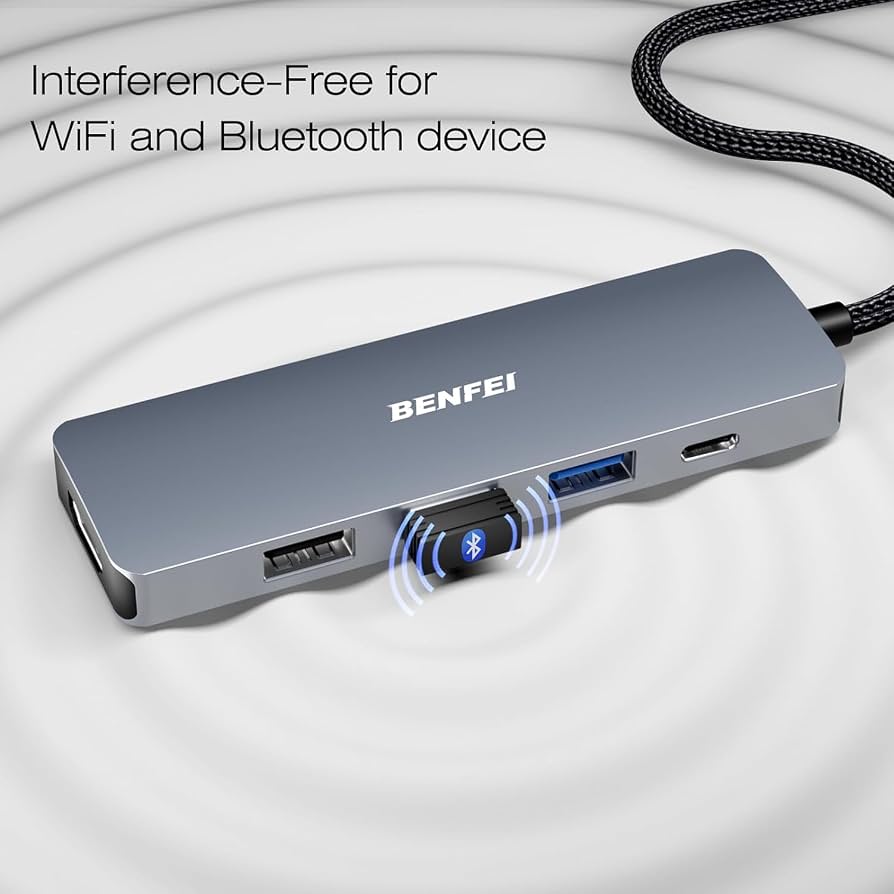
Physical length and internal architecture play huge roles in real-world signal reliability. Short dongles (under 2 meters / 6 feet) utilize passive copper wiring between the internal conversion chip and the HDMI terminal. However, running HDMI signals beyond 15 feet introduces severe signal attenuation and packet degradation unless an active optical design is chosen.
For large installations, conference halls, or home theater setups requiring cable runs from 15 to 50+ feet, an Active Optical Cable (AOC) USB – C to HDMI Adaptor utilizes internal fiber-optic strands. These active cables convert electrical video signals into optical light pulses, carrying lossless 4K at 60Hz over long distances without needing inline repeater boxes. AOC setups typically feature an auxiliary USB-A power lead to supply electric current to the optical transceiver circuits on either end.
Regarding latency, testing proves that a quality active USB – C to HDMI Adaptor introduces between 1ms to 3ms of processing delay. This latency is entirely imperceptible to human eyes and falls well below the native 5ms-10ms input lag of typical desktop gaming monitors or smart televisions operating in Game Mode. You can comfortably game on connected screens without experiencing input lag.
USB-C Power Delivery (PD) Passthrough in Hubs
Standard single-port dongles take drawing power from the host port to run their internal converter chips (typically requiring under 1.5 Watts). However, they do not pass power back to charge your host device. If your laptop or tablet features only a single USB-C port, plugging in a standard adapter means running exclusively on battery power.
To solve this, many users opt for a multiport USB – C to HDMI Adaptor hub featuring a dedicated USB-C Power Delivery (PD) input port. By connecting your laptop’s USB-C wall charger (e.g., 65W or 100W PD charger) directly into the hub’s PD input, the adapter passes up to 85W-92W of net charging power through to your host laptop while simultaneously outputting crisp 4K at 60Hz video to your display.
Buy top-rated USB-C to HDMI Adapters on Amazon
Device Compatibility Breakdown (Laptops, Tablets, Phones, Consoles)
Compatibility varies drastically depending on the ecosystem and hardware architecture of your host device. Here is an honest compatibility breakdown when using a modern USB – C to HDMI Adaptor across everyday devices:
- Apple MacBooks & Mac Studio: All modern Apple Silicon Macs (M1, M2, M3, M4) natively support DP Alt Mode over Thunderbolt. While Windows PCs can achieve 8K60 or 4K144 over HDMI 2.1 adapters, note that macOS currently caps external HDMI Alt Mode refresh rates at 4K@60Hz or 4K@120Hz depending on specific macOS display driver limitations.
- Windows Laptops & Chromebooks: Any Windows PC equipped with USB4, Thunderbolt 3/4, or a USB-C port stamped with a DisplayPort (DP) icon will output full 4K60, 4K120, or 8K60 video when paired with a matching adapter. Check your laptop specifications to ensure the port is not data-only.
- iPads & Android Tablets: iPads with USB-C ports (iPad Air 4th Gen+, iPad Pro, iPad mini 6) support clean mirroring and full second-screen desktop modes via Stage Manager. Android tablets like the Samsung Galaxy Tab S-series output native Samsung DeX desktop interfaces seamlessly.
- Smartphones: Smartphone video support is hit-or-miss. Samsung Galaxy S-series flagships (S8 through S26) support direct HDMI output via Samsung DeX. Motorola flagships support “Ready For” desktop output. However, Google Pixel devices (prior to Pixel 8/9 series) and budget Android phones disable DP Alt Mode at the hardware level, rendering any plugged-in USB – C to HDMI Adaptor completely non-functional.
- Handheld Consoles & Gaming Devices: The Valve Steam Deck, ROG Ally, and Legion Go feature full DP 1.4 Alt Mode over USB-C, allowing direct video playback to 4K TVs via standard adapters. However, the original Nintendo Switch utilizes a proprietary video output protocol over USB-C and requires its official dock power chip to output HDMI. Standard 3rd-party dongles without custom power handshake microcontrollers will not display Switch video output. Dedicated home consoles like PS5 and Xbox Series X do not output video over USB-C ports.
Detailed Hardware Comparison: Top Models Tested
To help you select the ideal hardware for your specific performance needs and budget, we compared five standout USB – C to HDMI Adaptor choices available on the market today.
| Model & Brand | HDMI Standard | Max Output Specs | HDR / HDCP | Key Strengths & Limitations |
|---|---|---|---|---|
| Insignia USB-C Dongle | HDMI 1.4 | 4K @ 30Hz / 1080p @ 60Hz | SDR Only / HDCP 1.4 | Ultra-budget choice. Limited to 30Hz at 4K. Fine for basic office slides or 1080p monitors. |
| Belkin Ultra HD Adapter | HDMI 2.0 | 4K @ 60Hz | Dolby Vision & HDR10 / HDCP 2.2 | Premium metal casing, rock-solid Mac/iPad stability. No Power Delivery passthrough port. |
| Plugable 8K Active Adapter | HDMI 2.1 | 8K @ 60Hz / 4K @ 144Hz | HDR10+ & Atmos / HDCP 2.3 | Cutting-edge DSC support. Exceptional value for high-refresh PC gamers and content creators. |
| Cable Matters 8K Converter | HDMI 2.1 | 8K @ 60Hz / 4K @ 240Hz | HDR / ALLM / HDCP 2.3 | Unmatched framerate capabilities for Windows RTX/AMD rigs. VRR/G-Sync not natively supported. |
| StarTech 50ft Active Optical Cable | HDMI 2.0 | 4K @ 60Hz (50ft distance) | HDR10 & 7.1 Audio / HDCP 2.2 | Lossless optical fiber transmission over extreme distances. High cost and requires external USB power. |
Pros and Cons of Using USB-C to HDMI Adapters
Before purchasing a USB – C to HDMI Adaptor, weigh these practical advantages against common system limitations:
Pros
- Universal Display Connectivity: Connects modern port-thin laptops and tablets to standard TVs, office monitors, and projectors instantly.
- Plug-and-Play Operation: Requires no external software drivers or complicated OS setup under Windows, macOS, Android, or ChromeOS.
- Zero Noticeable Latency: Input lag under 3ms makes active conversion flawless for 4K gaming and real-time video editing.
- High-Resolution Future Proofing: HDMI 2.1 models unlock up to 8K resolution and 120Hz/240Hz high-refresh rates on compatible GPUs.
- Audio & Video Over Single Cable: Transmits up to 8 channels of uncompressed audio alongside high dynamic range video metadata.
Cons
- Port Capability Dependent: Will completely fail to function if host USB-C port lacks DP Alt Mode or video hardware wiring.
- Directional Architecture: Cannot reverse-convert HDMI sources (e.g., gaming consoles) into USB-C monitors or portable displays.
- No Charging on Basic Dongles: Standard adapters drain host battery unless a hub with USB-C Power Delivery (PD) is selected.
- Operating System Refresh Caps: macOS may restrict external refresh rates to 60Hz over HDMI adapters despite adapter support for 120Hz.
Step-by-Step Troubleshooting Guide for Common Issues
If your USB – C to HDMI Adaptor setup is showing a black screen, flickering, or locked at low refresh rates, work through this step-by-step diagnostic sequence:
Issue 1: Complete No Signal / Black Screen Output
2. Reseat both ends of the USB-C adapter and target HDMI cable firmly into their respective jacks.
3. Inspect your TV or monitor input selection menu to ensure the exact physical HDMI port (e.g., HDMI 1 or HDMI 2) is manually selected.
4. Restart your laptop or mobile device with the adapter attached to force a new EDID display handshake.
Issue 2: Display Locked at 4K @ 30Hz Refresh Rate
2. Upgrade to an HDMI 2.0 (4K60) or HDMI 2.1 (4K120/8K60) certified adapter.
3. Open your display monitor’s internal settings menu and toggle the HDMI port mode from ‘Standard Mode’ or ‘HDMI 1.4’ to ‘Enhanced Mode’, ‘HDMI 2.0’, or ‘HDMI 2.1’.
Issue 3: Screen Flickering, Artifacts, or Random Signal Drops
2. Keep total copper HDMI cable length under 10 feet (3 meters) to prevent signal degradation. For longer distances, switch to an Active Optical Cable (AOC).
3. If using an active optical cable or portable monitor, verify that auxiliary USB power leads are connected to a dedicated 5V wall charger.
Issue 4: Video Works Great, But No Audio Output
2. On macOS: Open System Settings > Sound > Output, and select the target HDMI audio endpoint.
3. Ensure your TV’s internal audio input settings are configured to receive digital PCM or multi-channel HDMI audio rather than analog inputs.
Frequently Asked Questions (SEO FAQ)
1. Does every USB-C port work with a USB-C to HDMI adapter?
No. A USB-C port must specifically support DisplayPort Alternate Mode (DP Alt Mode), Thunderbolt 3, Thunderbolt 4, or USB4 to output video. USB-C ports designed solely for data transfer or battery charging will not output a video signal when an adapter is attached.
2. Can I use a USB-C to HDMI adapter in reverse to connect an HDMI console to a USB-C monitor?
No. Standard USB – C to HDMI Adaptor devices are strictly unidirectional (USB-C source to HDMI display). To connect an HDMI source like a PS5 or Xbox to a USB-C monitor, you require a specialized active HDMI-to-USB-C signal converter box powered by USB.
3. Do I need to install special software drivers for a USB-C to HDMI adapter?
No. Standard active adapters operate driver-free at the hardware level using plug-and-play protocols supported natively across Windows, macOS, ChromeOS, Android, and Linux operating systems.
4. Will a USB-C to HDMI adapter charge my laptop while outputting video?
Standard single-port dongles do not transmit charging power to your host device. To charge your laptop while displaying video, you must purchase a multiport USB-C hub featuring a dedicated USB-C Power Delivery (PD) pass-through charging port.
5. Why is my 4K display locked at 30Hz instead of 60Hz when using my adapter?
This occurs when either your USB – C to HDMI Adaptor is an older HDMI 1.4 model, your host USB-C port is restricted to DP 1.2 without sufficient bandwidth, or your TV’s HDMI input port needs to be manually set to ‘Enhanced Mode’ or ‘HDMI 2.0’ within its settings menu.
6. Can I get 4K at 120Hz or 8K at 60Hz video output on a Mac using an HDMI 2.1 adapter?
While HDMI 2.1 adapters fully support 8K60 and 4K120 hardware output, macOS imposes display driver limits that may cap video refresh rates over HDMI Alt Mode at 4K60 on certain Mac models. High refresh rates on Macs are often more easily achieved using USB-C to DisplayPort cables.
7. Is there input lag when playing games through a USB-C to HDMI adapter?
No. Quality active USB-C to HDMI adapters add a negligible 1ms to 3ms of latency, which is unnoticeable during high-speed gaming and well within standard monitor response tolerances.
Final Verdict & Buyer’s Recommendation
So, does a USB – C to HDMI Adaptor actually work? Absolutely. When paired with a video-capable USB-C or Thunderbolt port, modern active adapters deliver flawless 4K60 and high-refresh 8K video playback, HDR color depth, and surround sound audio without lag or setup headaches.
For standard home office work, media streaming, and casual dual-monitor setups, a mid-range HDMI 2.0 USB – C to HDMI Adaptor capable of 4K at 60Hz provides the best balance of price and performance. If you are a high-refresh PC gamer, content editor, or looking to future-proof your workstation for 8K displays, investing in an HDMI 2.1 active adapter featuring DSC support is well worth the slight extra cost. Always double-check that your device’s USB-C port explicitly lists DP Alt Mode or Thunderbolt support before buying!
To upgrade your desktop workspace with a certified, high-performance display adapter today, click our recommended link below:
Buy the Best USB – C to HDMI Adaptor on Amazon Now
Follow TheKZVerse
Enjoyed this honest hardware review? Stay connected with TheKZVerse across all our official social media channels for the latest tech reviews, teardowns, and gadget guides!
- Website: https://thekzverse.com/
- Instagram: @thekzverse on Instagram
- Facebook: TheKZVerse on Facebook
- YouTube: @thekzverse on YouTube
- TikTok: @thekzverse on TikTok
- Threads: @thekzverse on Threads
Don’t forget to leave a comment below or subscribe to our YouTube channel to join the tech conversation!
Subscribe to our email newsletter to get the latest posts delivered right to your email.
Comments