
Category: Tech Reviews | Review
Apple Magic Mouse — Is It Still Worth It in 2026? Honest Review
Testing the Apple Magic Mouse in 2026: breaking down the Multi-Touch surface, ergonomics, bottom-port charging, and performance across macOS.
The computer mouse remains one of the primary physical conduits through which human intent translates into digital action. Within the historical trajectory of desktop peripherals, few products embody the tension between industrial design aesthetics and utilitarian functionality quite like the Apple Magic Mouse. First introduced in 2009 as the world’s first consumer pointing device with a seamless Multi-Touch acrylic surface, the device fundamentally re-architected how users navigate graphical user interfaces across the macOS ecosystem. By eliminating physical mechanical scroll wheels, dedicated discrete buttons, and visible seam lines, Apple created an input device that doubles as a continuous capacitive touch pad.
However, its long lifecycle has been defined as much by polarized ergonomic debate as by its technological innovation. The decision to prioritize an ultra-flat, low-profile silhouette—coupled with the placement of its charging port on the underside during the transition to rechargeable lithium-ion architecture—has generated endless industry discussion, aftermarket accessory innovation, and hardware modification. In this comprehensive 2026 review, we analyze whether the Apple Magic Mouse remains a viable tool for productivity or if its design compromises outweigh its benefits. For more in-depth analyses of modern desktop gear, make sure to explore our Tech Reviews hub.
Historical Trajectory and Generational Evolution
To contextualize the modern Apple Magic Mouse, one must examine Apple’s long-standing lineage of input hardware engineering. Apple’s peripheral journey began with the 1983 Lisa Mouse (Model A9M0050), developed in collaboration with Hovey-Kelley (later IDEO) and designed by Bill Dresselhaus. The Lisa Mouse featured a heavy steel tracking ball and an Art Deco aesthetic, establishing the single-button philosophy that defined Apple input devices for over two decades. This was refined in the 1984 Macintosh Mouse, which shifted to a rubber tracking ball and lighter plastic housing to reduce production costs and improve user agility.
By July 2000, Apple introduced the Apple Pro Mouse, featuring a zero-button optical tracking shell enclosed in crystal-clear acrylic. This laid the visual foundation for modern Apple desktop aesthetics. In 2005, the company made its first major departure from single-button minimalism with the introduction of the Mighty Mouse. The Mighty Mouse integrated a pressure-sensitive top shell capable of simulated right-clicks, touch-sensitive side squeeze sensors, and a 360-degree clickable miniature scroll ball that emitted synthesized click audio via an internal piezo speaker.
In October 2009, Apple replaced the Mighty Mouse with the first-generation Apple Magic Mouse (Model A1296). This marked a radical shift toward solid-state capacitive sensing, removing mechanical trackballs entirely in favor of a unified multi-touch top shell. Over the subsequent decade and a half, the physical form factor remained largely static, while internal power delivery, tracking sensors, and charging interfaces underwent incremental revisions. You can read more about vintage hardware paradigms on TheKZVerse Homepage.
First Generation (Model A1296)
Released on October 20, 2009, alongside updated iMac hardware, the original Apple Magic Mouse operated via Bluetooth 2.1+EDR and was powered by two user-swappable AA batteries. The internal chassis relied on an optical laser tracking engine capable of high-frequency surface sampling. Weighing approximately 105 grams with batteries installed, it featured a removable aluminum bottom door covering the battery compartment alongside a physical power toggle switch. Because it relied on swappable primary cells, the A1296 possessed no external charging ports, meaning battery longevity was bounded only by the quality of the inserted cells.
Second Generation (Model A1657)
Introduced on October 13, 2015, the Magic Mouse 2 systematically overhauled the internal power architecture. Apple eliminated the AA battery housing in favor of an integrated, non-removable 1,080 mAh lithium-ion battery pack. This shift reduced the overall mass of the peripheral to 99 grams and enabled an integrated, smoother bottom rail gliding structure.
To facilitate charging and initial automated Bluetooth pairing with macOS, Apple integrated a proprietary Lightning port into the underside aluminum baseplate. Fast-charging circuitry allowed a two-minute charge cycle to yield up to nine hours of operational life, with a full charge supplying between thirty and sixty days of regular desktop use. Throughout its lifecycle, Model A1657 received visual color refreshes: Space Gray was introduced alongside the iMac Pro in 2017, seven pastel color variants accompanied the M1 24-inch iMac in 2021, and a standalone Black and Silver finish replaced Space Gray in 2022.
Second Generation USB-C Revision (Model A3204)
On October 28, 2024, Apple officially retired the Lightning interface across its desktop accessory lineup to align with European Union legislative mandates and universal USB-C standardization across the broader Apple ecosystem. The updated Apple Magic Mouse (Model A3204) replaced the Lightning port on the underside with a USB-C port. The internal battery capacity, physical housing dimensions, glass-acrylic surface geometry, optical sensor, and underside port placement remained identical to Model A1657. The update required systems running macOS Sequoia 15.0 or later to ensure complete driver and software alignment. If you are shopping for updated desktop gear, check out our curated guide on Modern Gadgets and Accessories.
| Hardware Parameter | First Gen (Model A1296) | Second Gen (Model A1657) | Second Gen USB-C (Model A3204) |
|---|---|---|---|
| Launch Date | October 20, 2009 | October 13, 2015 | October 28, 2024 |
| Power Architecture | Dual user-swappable AA batteries | Sealed 1,080 mAh Li-ion battery | Sealed 1,080 mAh Li-ion battery |
| Charging Port Interface | None (N/A) | Lightning (Underside baseplate) | USB-C (Underside baseplate) |
| Total Mass | ~105 grams | 99 grams | 99 grams |
| Wireless Protocol | Bluetooth 2.1 + EDR | Bluetooth 3.0 | Bluetooth 3.0 / Low Energy |
| Base Gliding Geometry | Dual synthetic rails, removable door | Dual continuous plastic rails | Dual continuous plastic rails |
| Fast-Charge Output | N/A | 2 min charge = ~9 hrs operation | 2 min charge = ~9 hrs operation |
| Minimum System Support | Mac OS X Leopard 10.5.8+ | OS X El Capitan / iPadOS 13.4+ | macOS Sequoia 15.0+ / iPadOS 13.4+ |
Capacitive Multi-Touch Architecture and Navigation Mechanics
The defining technical characteristic of the Apple Magic Mouse is its capacitive Multi-Touch surface. Unlike traditional desktop mice that rely on physical mechanical wheels, tilt switches, or discrete side thumb buttons, the entire top shell of the device acts as a smooth, continuous capacitive sensor matrix.
Beneath the clear acrylic outer layer rests an array of capacitive touch sensors similar to those used in iOS devices. This layer constantly samples user finger position, touch velocity, and multi-finger spatial coordinates. When a user rests their hand on the device, software algorithms inside macOS process input data to differentiate between intentional inputs and resting palm contact, ensuring palm rejection during basic tracking maneuvers.
The structural foundation of the device uses a single physical mechanical microswitch located under the front base assembly. The tactile click response is activated by flexing the acrylic shell downward onto this microswitch. To perform a secondary click (right-click), the capacitive array detects whether the user’s index finger has been lifted off the left zone of the surface, ensuring that downward pressure from the middle finger registers contextually as a secondary click. If you’re interested in more workflow efficiency guides, explore our MacBook and Desktop Tag Collection.
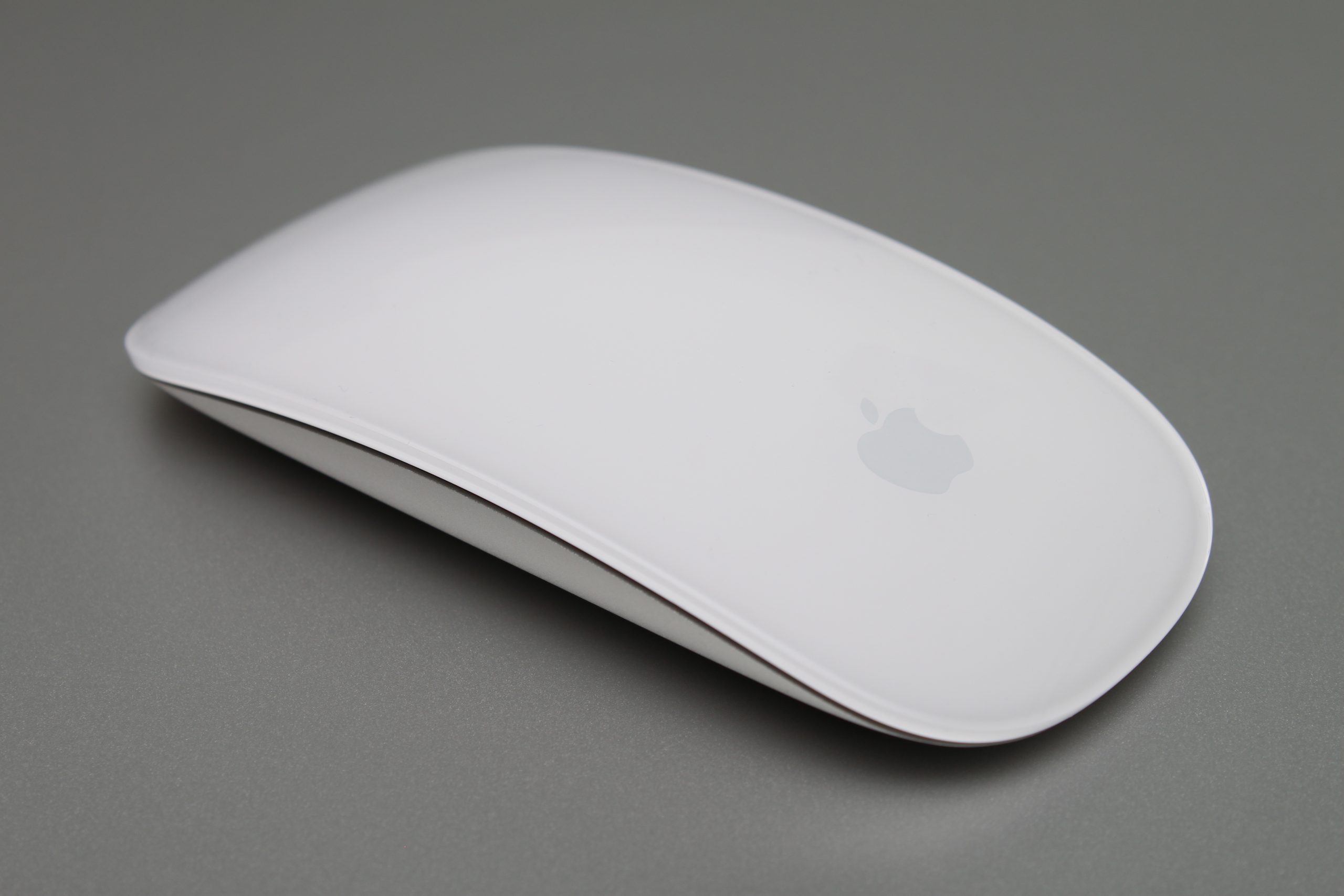
By tightly coupling hardware sensors with the macOS display subsystem, the Apple Magic Mouse exposes continuous navigation features that traditional mechanical scroll wheels cannot replicate:
- 360-Degree Inertial Panning: Users can scroll fluidly across both X and Y axes simultaneously. This is valuable for creative application timelines in software such as Final Cut Pro, Logic Pro, Adobe Premiere Pro, and DaVinci Resolve.
- Momentum and Friction Scrolling: macOS translates finger velocity on the mouse surface into exponential document scrolling, simulating physical mass and kinetic deceleration.
- Smart Zoom: A single-finger double-tap triggers contextual scaling within web browsers and document readers, zooming directly into the target text block.
- Space and Application Navigation: A two-finger horizontal swipe navigates between distinct macOS desktop spaces and full-screen applications, while a two-finger double-tap invokes Mission Control.
To see how these gesture capabilities feel in real-world creative setups, check out our video breakdown below:
The Ergonomic Dilemma and Operational Criticisms
Despite its technical innovation, the Apple Magic Mouse remains one of the most polarizing hardware designs in desktop computing history. Critics argue that Apple prioritized form factor minimalism and visual elegance over human biomechanics, resulting in two main usability flaws: ergonomics and charging port placement.
Biomechanical Strain and Grip Dynamics
In human factors engineering, computer mice generally accommodate three hand grips: palm grip, claw grip, and fingertip grip. In a palm grip, the entire hand rests flat on the body of the mouse, requiring a tall, contoured, anatomical arch. In a claw grip, the palm rests on the rear lip while fingers arch sharply downward onto primary buttons. In a fingertip grip, the palm makes zero contact with the mouse chassis, and control is maintained entirely by the tips of the thumb, ring, and pinky fingers.
The Apple Magic Mouse features an ultra-flat profile measuring approximately 2.16 cm at its highest apex. This flat profile provides no arch support for the human palm. As a result, palm-grip users are forced into an unnatural, suspended claw posture. Extended operational sessions can strain the extensor digitorum muscles and thenar/hypothenar palm regions, causing hand fatigue, wrist soreness, and stiffness. Furthermore, the thin aluminum lower edges lack rubberized friction grips, forcing users to pinch the aluminum chassis tightly between the thumb and pinky to lift or re-center the device during high-DPI tracking maneuvers.
Conversely, defenders of the device argue that the Apple Magic Mouse was never intended to support a traditional palm grip. Because the top shell operates as a continuous touch surface, anchoring the palm against the rear of the mouse would restrict finger movement, limiting multi-touch gesture range. From this perspective, the mouse is engineered intentionally as a fingertip peripheral, where the chassis rests loosely under light finger contact to maximize gesture reach. Read more about ergonomic desk setups in our Unboxings and Setup Reviews category.
The Underside Charging Port Contradiction
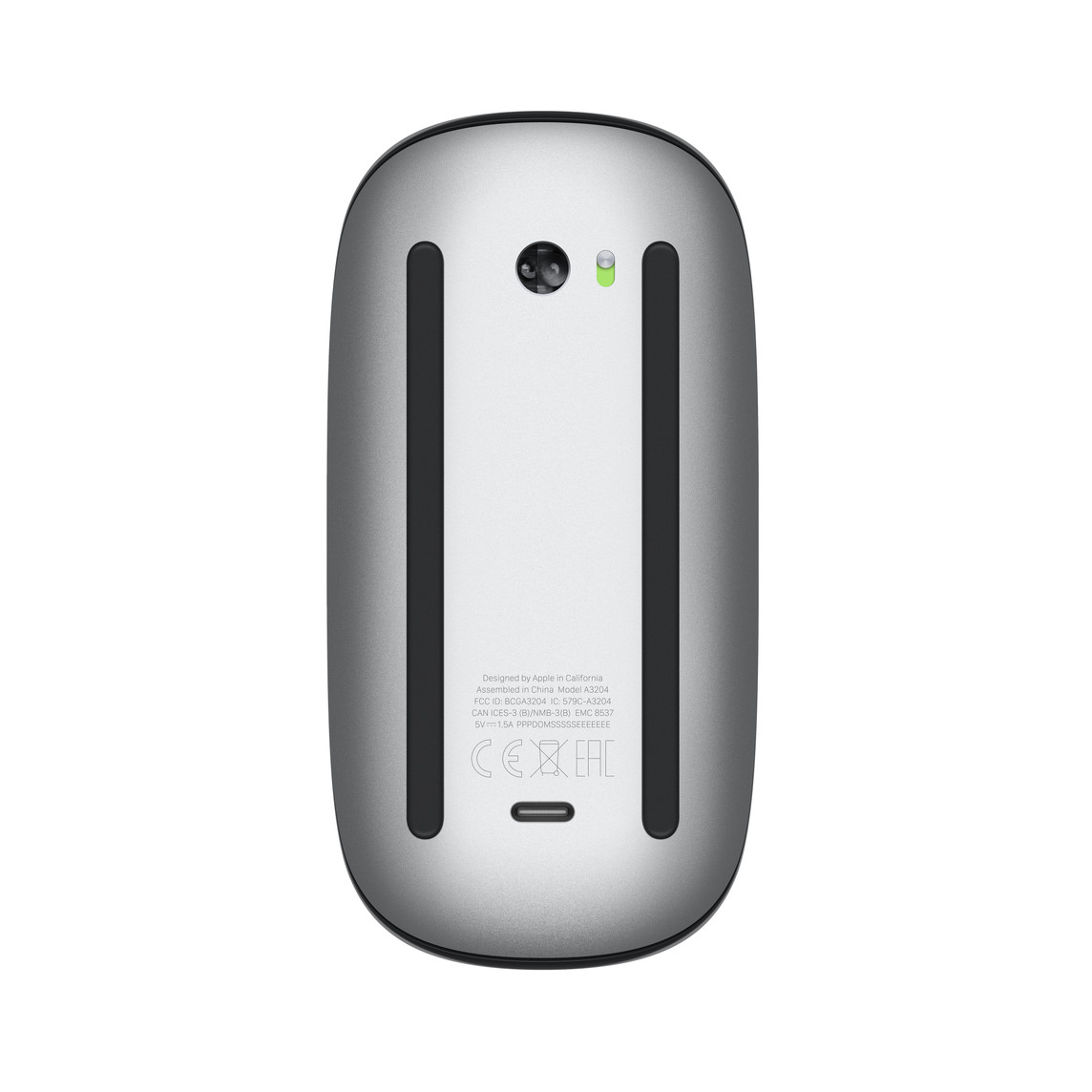
When Apple migrated the mouse from AA batteries to an internal rechargeable lithium-ion cell in 2015, engineers placed the Lightning charging port directly on the bottom baseplate between the two optical glide rails. This port placement was preserved during the October 2024 USB-C refresh.
“Placing the charging port on the underside creates the infamous ‘turtle posture’—disabling the mouse completely whenever it needs to recharge.”
This structural decision prevents the mouse from being used while connected to a charging cable. When plugged in, the device must be flipped upside down or laid on its side—a state frequently referred to in tech media as the “turtle posture”. Industry analysts suggest that Apple intentionally placed the port on the underside to prevent users from permanently leaving a cable plugged in. Doing so would turn the wireless device into an unsightly wired hybrid mouse, undermining Apple’s clean desk aesthetic. Additionally, Apple relied on fast-charge power management: a brief two-minute charge supplies roughly nine hours of emergency utility, which mitigates long downtime.
Conversely, human factors engineers contend that disabling an input device during power replenishment breaks workflow continuity. If the mouse battery drops to zero during a deadline or critical creative task, the user experiences forced downtime. Competitors avoid this by placing the charging interface at the front edge, allowing the device to function seamlessly as a wired mouse during charging.
Comparative Analysis: Apple Magic Mouse vs. Logitech MX Master 3S
To understand where the Apple Magic Mouse stands in 2026, it is helpful to compare it against its primary industry rival, the Logitech MX Master 3S for Mac. Below is a detailed breakdown of how these flagship devices compare across crucial operational dimensions.
| Specification Parameter | Apple Magic Mouse (Model A3204) | Logitech MX Master 3S for Mac |
|---|---|---|
| Ergonomic Profile | Ambidextrous, flat, low-profile silhouette | Asymmetric, right-hand contoured palm arch |
| Primary Navigation | Multi-Touch capacitive acrylic top surface | Mechanical MagSpeed wheel + thumb wheel |
| Horizontal Scrolling | Native 360-degree continuous touch pan | Dedicated physical side thumb wheel |
| Physical Side Buttons | None (Gesture-driven surface) | Multiple programmable side buttons + gesture pad |
| Tracking Engine | Apple Laser/Optical Engine | Darkfield Sensor (up to 8,000 DPI) |
| Charging Port Location | Underside baseplate (Inoperable while charging) | Front edge (Fully operable while charging) |
| Battery Life Expectancy | ~30 to 60 days per full charge cycle | Up to 70 days per full charge cycle |
| Multi-Device Pairing | Single active target via Apple ID / macOS auto-pair | Up to 3 devices via Easy-Switch Bluetooth |
| Custom Software Driver | Built natively into macOS and iPadOS core systems | Logi Options+ application required for full mapping |
The Aftermarket Ecosystem: Ergonomic Extensions and Hardware Modifications
The persistent design limitations of the Apple Magic Mouse have birthed an aftermarket ecosystem of hardware accessories, third-party ergonomic cases, and custom charging modifications aimed at resolving its biomechanical flaws.
Third-party manufacturers have created clip-on ergonomic shells that transform the flat profile of the device into a traditional contoured mouse. Among the most widely adopted ergonomic accessories is the Solumics Case. This lightweight, snap-on shell elevates the palm resting area at the rear of the device while widening the side grip profiles. The case attaches to the chassis in less than three seconds without tools, adhesive, or permanent modifications. The shell is designed so that the elevated rear portion supports the user’s palm arch, while the open front portion leaves the Multi-Touch area completely unobstructed.
Crucially, the Apple Magic Mouse continues to glide directly on its own factory bottom rails rather than on the case housing, preserving low-friction tracking dynamics. Similar to full-body cases, accessories like the MouseBase elevate and slightly tilt the device to create a neutral wrist angle. By introducing a sloped, contoured grip, these shells convert the peripheral from a pure fingertip device into a hybrid palm-rest peripheral, reducing the muscle strain associated with extended claw grips.
For users who want to keep the low-profile back of the mouse but dislike its slick sides, products like MagicGrips provide contoured silicone side cushions. Attached with removable adhesives, these side rubber pads broaden the lateral contact area. This reduces the pinch force required to lift or reposition the mouse across large dual-monitor workspaces. Find more setup accessories in our dedicated Gadgets Category.
To streamline charging and eliminate plug wear on the bottom port, manufacturers produce specialized desktop charging cradles and magnetic USB cable tips. Cradles hold the device vertically or upside down in a dedicated desktop slot, serving as an aesthetic resting station when the computer is idle. Users also insert low-profile magnetic USB-C tips into the baseplate. When charging is needed, the magnetic cable snaps onto the baseplate without requiring manual cable insertion. DIY enthusiasts have even integrated wireless Qi receiver coils and custom 3D-printed baseplates into the housing, allowing the device to charge wirelessly on resonant mousepads.
Cross-Platform Integration and Software Drivers
While engineered primarily for native integration with Mac hardware, the Apple Magic Mouse is deployed across various operating system environments with differing levels of feature support.
Within macOS, device setup is entirely frictionless. Connecting the mouse via a physical charge cable automatically pairs the device via Bluetooth, displaying current battery percentages natively within the system menu bar and Control Center. Beginning with iPadOS 13.4, Apple introduced full pointer and mouse support across its iPad lineup. The peripheral pairs seamlessly with iPadOS, translating multi-touch surface swipes into fluid home-screen navigation, app-switching gestures, and contextual text selection.
When connected to a native Windows PC or a Mac running BootCamp, the Apple Magic Mouse acts as a generic HID-compliant Bluetooth pointer out of the box. Left-click, right-click, and basic optical movement function normally. However, native Windows HID drivers cannot interpret the multi-touch capacitive telemetry sent by the top surface, disabling vertical scrolling, horizontal panning, and gesture inputs.
To resolve this limitation, software utility developers created dedicated Windows driver packages, such as Magic Utilities. These custom kernel-level Windows drivers decode the raw capacitive touch data transmitted over Bluetooth. Installing these drivers enables:
- Smooth Inertial Scrolling: Translates single-finger surface swipes into fluid, smooth-scrolling behavior inside Windows applications.
- Horizontal Axis Panning: Enables multi-directional scrolling across wide Excel spreadsheets and video editing timelines.
- Custom Gesture Mapping: Allows users to bind two-finger swipes to Windows shortcuts, such as Alt+Tab task switching, virtual desktop navigation, or browser commands.
- Battery Monitoring: Adds a system tray indicator showing real-time battery status and charge state telemetry.
Pros and Cons
Pros
- Unmatched 360-degree multi-touch navigation and inertial scrolling across macOS.
- Sleek, minimalist aesthetic that integrates perfectly with Apple hardware.
- Lightweight and compact form factor ideal for travel and mobile workflows.
- Native macOS and iPadOS driver integration with no third-party software needed.
- Updated USB-C port (Model A3204) eliminates legacy Lightning cable dependency.
Cons
- Flat profile provides zero palm support, leading to hand fatigue during long sessions.
- Underside charging port renders the mouse completely unusable while plugged in.
- Lack of physical customization buttons or DPI adjustment options.
- Limited native functionality on Windows without paid third-party drivers.
Key Specifications Summary
| Feature | Specification Details |
|---|---|
| Model Number | A3204 (USB-C Version) |
| Weight | 99 grams (0.22 lbs) |
| Height / Apex | 2.16 cm (0.85 inches) |
| Surface Technology | Seamless acrylic capacitive Multi-Touch matrix |
| Internal Power | Rechargeable 1,080 mAh Lithium-ion battery |
| Charging Port | USB-C (Underside baseplate) |
| Connectivity | Bluetooth 3.0 / Wireless / USB-C pairing |
| OS Compatibility | macOS Sequoia 15.0+, iPadOS 13.4+, Windows (Basic) |
Frequently Asked Questions (FAQ)
Can I use the Apple Magic Mouse while it is charging?
Does the Apple Magic Mouse work seamlessly on Windows 11?
How do I right-click on the Apple Magic Mouse?
Is the USB-C version of the Magic Mouse structurally different from the Lightning version?
How can I make the Apple Magic Mouse more comfortable for long workdays?
Verdict: Is the Apple Magic Mouse Still Worth It in 2026?
The Apple Magic Mouse occupies a distinct position in the input device landscape. It remains an impressive example of multi-touch hardware integration, giving Mac users fluid, trackpad-like gesture capabilities within a compact desktop footprint. Its seamless horizontal panning and inertial scrolling make it an attractive peripheral for creative professionals working heavily within audio and video timelines inside macOS.
However, these functional advantages come with noticeable ergonomic trade-offs. The flat, low-profile shape demands a fingertip grip posture that can cause fatigue during long work sessions, while its underside charging port remains an inconvenient design choice. For users who want to retain native macOS Multi-Touch gestures without suffering hand fatigue, aftermarket accessories like ergonomic shells offer a practical compromise, providing palm support without obstructing touch controls.
If you value seamless macOS gesture navigation and minimalist desk aesthetics above all else, the Apple Magic Mouse remains a unique tool that no standard scroll-wheel mouse can fully replicate. Check current pricing and grab yours today through the link below!
Follow TheKZVerse
Stay connected with us across all our social platforms for the latest tech reviews, unboxings, and setup guides:
- Website: TheKZVerse Main Hub
- Instagram: @thekzverse on Instagram
- Facebook: TheKZVerse Official Facebook
- YouTube: Subscribe to TheKZVerse on YouTube
- TikTok: @thekzverse on TikTok
- Threads: Follow TheKZVerse on Threads
What are your thoughts on the Apple Magic Mouse? Do you love the gestures, or does the bottom port drive you crazy? Drop a comment below or join the conversation on our social channels!
Subscribe to our email newsletter to get the latest posts delivered right to your email.
Comments