
Category: Technology | Review
USB 3.0 Switcher (2 Computers Share 4 USB Devices) – I Use 2 Computers With 1 Keyboard and Mouse
If you use two computers at the same desk, you probably know the annoying part of the setup: the keyboard belongs to one computer, the mouse belongs to another, and suddenly you are reaching behind your desk to move USB cables around. A USB 3.0 Switcher (2 Computers Share 4 USB Devices) is designed to eliminate that hassle.
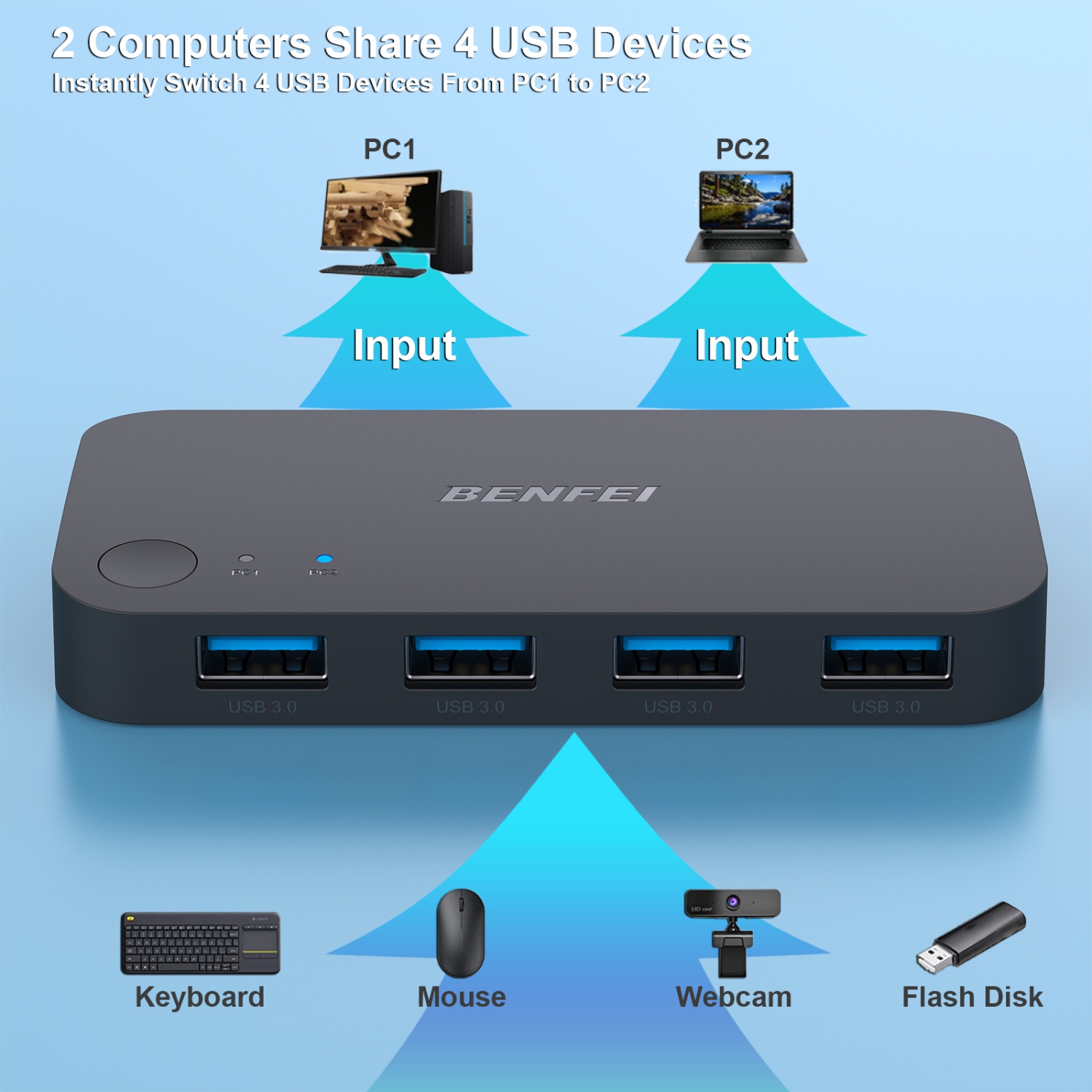
The basic idea is surprisingly simple. You connect two computers to the switch, connect your keyboard, mouse, printer, storage drive, webcam or other USB accessories to the four shared USB ports, and then press a button whenever you want to move those peripherals from one computer to the other.
After spending time looking at how these switches work, what people actually use them for, where they can disappoint, and how different models compare, I think this is one of those accessories that makes much more sense once you have a two-computer desk. It is not flashy hardware, but it can solve a very specific problem extremely well.
There is also an important distinction to understand before buying one. A USB switch is not necessarily a complete KVM switch. Most of these compact USB 3.0 models only switch USB devices. They do not switch your monitor, video signal or speakers unless the particular product specifically says that it supports those functions.
That difference matters. If your goal is simply to use one keyboard and mouse with two computers, a USB switch can be inexpensive and convenient. If you want one button to switch your monitor, keyboard and mouse simultaneously, you need a genuine KVM solution.
If you enjoy practical computer accessories and real-world gadget testing, you can also explore more hands-on content in the TheKZVerse Tech Reviews section.
What Is a USB 3.0 Switcher (2 Computers Share 4 USB Devices)?
A USB 3.0 Switcher (2 Computers Share 4 USB Devices) is essentially a traffic controller for USB peripherals. Instead of connecting a keyboard, mouse, printer or external drive directly to one computer, you connect those devices to the switch. The switch then connects to two separate host computers.
Only one computer gets access to the shared USB devices at a time. Press the switch button and the connection moves to the other computer.
Most four-port models have two upstream connections for the computers and four downstream USB ports for peripherals. The downstream ports are generally USB-A and support USB 3.0 speeds when the switch and connected devices support them.
This arrangement is particularly useful if your desk contains multiple USB accessories. Imagine having a desktop PC and a laptop connected to the same workstation. Instead of maintaining a separate keyboard and mouse for each machine, you can connect both computers to the switch and use a single set of peripherals.
The same concept works for other accessories. You could share a printer, card reader, USB microphone, webcam, external SSD or game controller, although storage and high-bandwidth devices deserve a little more attention because all four ports share the switch’s available USB bandwidth.
USB Switch Versus KVM Switch
The terminology can be confusing because some manufacturers casually describe USB switches as KVM switches. Technically, the difference is important.
USB switch: switches USB peripherals between computers.
KVM switch: normally switches keyboard, video and mouse, often allowing one monitor or multiple displays to be shared between computers as well.
A four-port USB 3.0 switch does not automatically mean you can connect HDMI or DisplayPort through it. The USB ports are for USB data and power. Your monitor still needs its own connection to the computers unless you are using a separate video switching solution.
That is why I would describe this type of product as a USB peripheral switch rather than a complete KVM. Once you understand that distinction, it becomes much easier to choose the right product.
Why Would You Want One?
The biggest advantage is convenience. A two-computer desk can become surprisingly cable-heavy. One computer may be your main desktop, while the other could be a work laptop, MacBook, test machine or small Linux system.
Without a switch, every shared accessory needs either a second copy or a manual cable swap. Neither option is particularly attractive.
A USB 3.0 Switcher (2 Computers Share 4 USB Devices) gives you another option: keep the peripherals permanently connected and switch the USB connection instead.
- Use one keyboard and mouse with two computers.
- Share one printer between two computers.
- Share an external USB storage device.
- Move a webcam between computers.
- Share a USB microphone or audio interface.
- Use one card reader with multiple machines.
- Share game controllers or other USB accessories.
- Reduce cable swapping around your desk.
For a home office, this can be particularly useful. You can keep your personal desktop and work computer connected to the same accessories without having to physically rearrange your workstation every time you change tasks.
USB 3.0 Speed: What Does 5 Gbps Actually Mean?
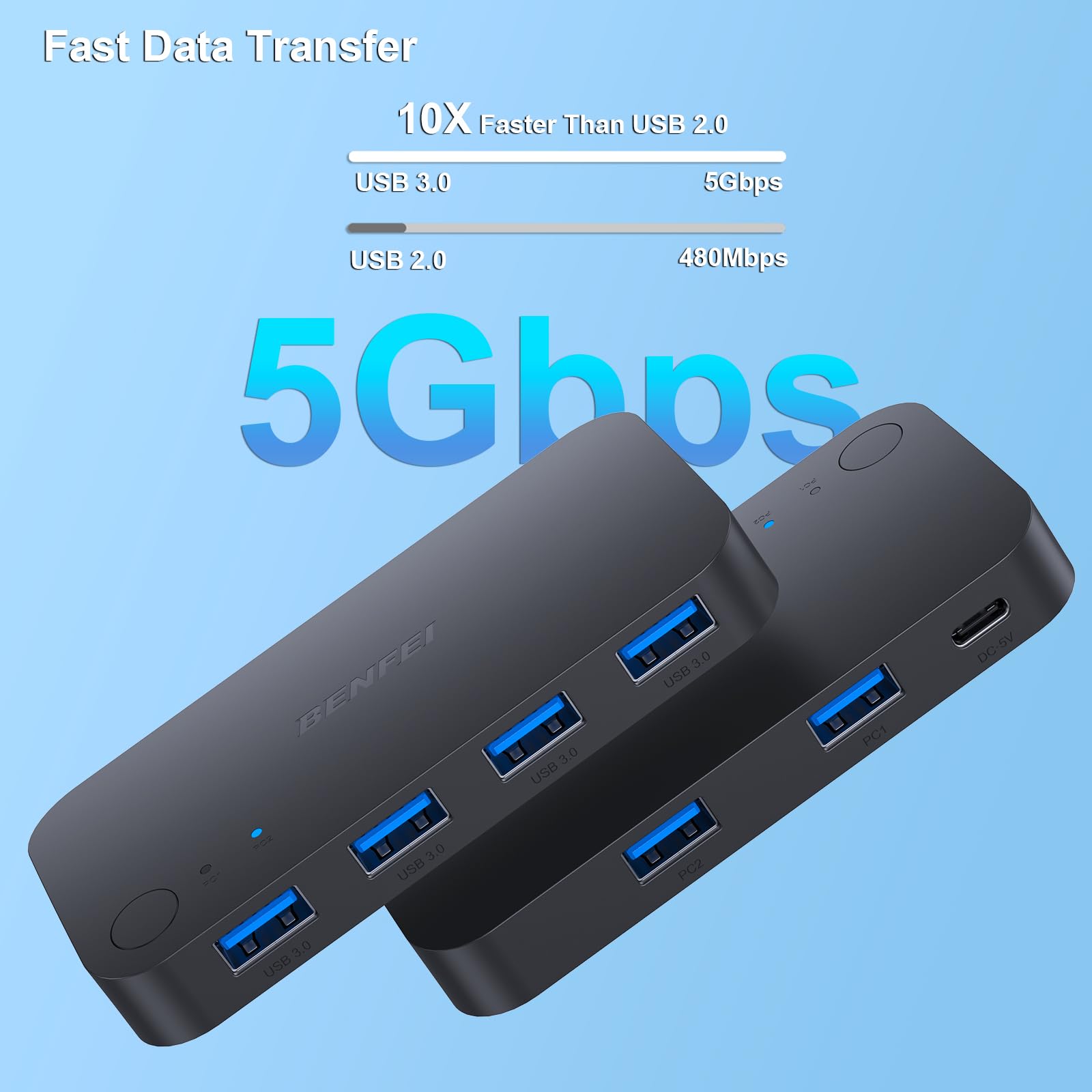
One of the main reasons to choose USB 3.0 instead of an older USB 2.0 switch is bandwidth. USB 3.0 is commonly marketed with a theoretical maximum signaling rate of 5 Gbps.
That sounds enormous, but there is an important catch: 5 Gbps is a theoretical interface speed, not a guaranteed file-transfer rate. Protocol overhead, storage performance, controller limitations, cable quality and the switch itself all affect real-world results.
For example, a fast external SSD might achieve several hundred megabytes per second when connected directly to a computer. Connecting that drive through a USB 3.0 switch can reduce the practical throughput. Real-world testing reported for similar switches has shown roughly 300-400 MB/s in some configurations, while a direct connection can be substantially faster.
That does not make the switch slow. For normal keyboard and mouse use, the difference is irrelevant. Even for many everyday storage tasks, several hundred megabytes per second is perfectly usable.
| Feature | Typical USB 3.0 Switcher Specification |
|---|---|
| Computer inputs | 2 host computers |
| Shared USB outputs | Up to 4 USB devices |
| USB standard | USB 3.0 / USB 3.2 Gen 1 class |
| Theoretical bandwidth | Up to 5 Gbps |
| Switching | Physical button on most models |
| Status indicator | LED indicators on many models |
| Power | Optional 5V Micro-USB or USB-C input on many models |
| Operating systems | Windows, macOS, Linux, Chrome OS and other USB-compatible systems |
| Drivers | Usually no driver required for the switch itself |
| Video switching | No, unless explicitly supported by a specific KVM model |
Real-World USB 3.0 Performance
For me, the most interesting question is not whether the box says 5 Gbps. It is how the switch behaves when you actually use it.
With keyboard and mouse input, bandwidth is almost irrelevant. These devices generate tiny amounts of data compared with what USB 3.0 can handle. You should not expect a noticeable difference in responsiveness simply because your keyboard is connected through a USB switch.
External SSDs are different. A USB 3.0 switch has to share the available upstream bandwidth between the connected USB devices. If you attach a fast SSD and start transferring a large amount of data, you can see lower speeds than a direct connection.
That is not necessarily a defect. It is a normal consequence of inserting another USB device between the computer and peripheral.
For example, a fast portable SSD can approach roughly 500 MB/s or more in a direct USB 3 connection depending on the drive and enclosure. Through a switch, results around the 300-400 MB/s range can be perfectly plausible.
If your primary purpose is keyboard, mouse, printer and webcam sharing, I would not worry about this. If your primary purpose is moving hundreds of gigabytes between computers as quickly as possible, a direct USB connection or a faster networking solution may be a better choice.
Is There Noticeable Input Lag?
For normal peripherals, input latency should not be a meaningful concern. USB keyboards and mice send relatively small amounts of data, and users generally report no noticeable lag when using these devices through a quality USB 3.0 switch.
That said, competitive gamers can be more sensitive to every part of their input chain. If you are playing at a highly competitive level and your mouse is configured for an extremely high polling rate, a direct connection is still the simplest way to remove another variable.
For everyday gaming, casual gaming, productivity and general computer use, a quality USB switch should be perfectly practical.
Design and Build Quality
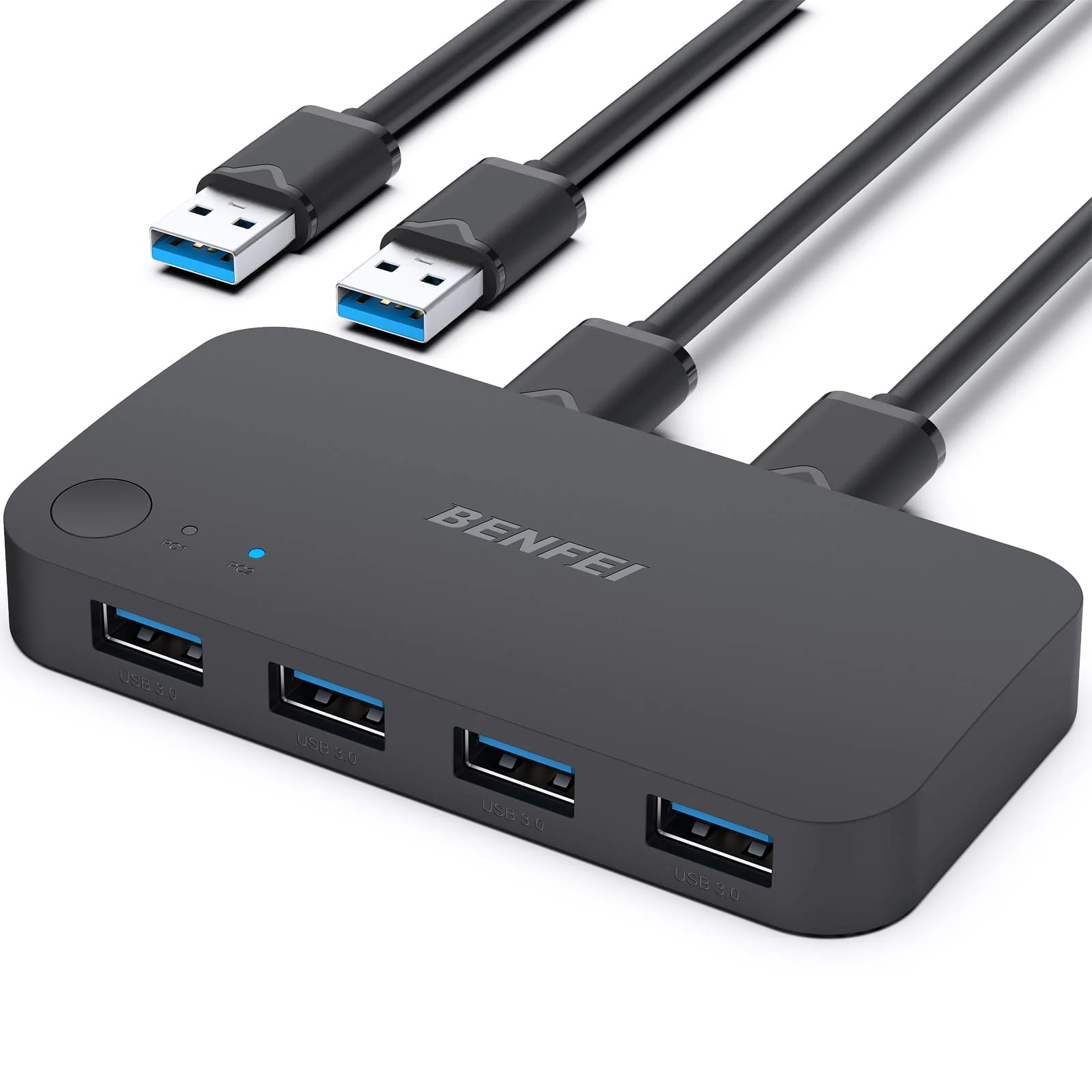
Most two-computer four-port USB 3.0 switches have a compact desktop-friendly design. They are usually small enough to sit next to a keyboard, under a monitor or beside a laptop dock.
The front of the device typically contains four USB-A ports. Depending on the model, there may also be a large switching button and one or more LEDs showing which computer is currently active.
The rear or side usually contains the two host connections and a power input. Some newer models use USB-C for power, while many inexpensive models use Micro-USB.
Build quality varies significantly between manufacturers. Some switches use lightweight plastic housings, while others use metal cases. A metal enclosure can feel more substantial on a permanent desktop setup, but the electronics and USB controller matter more than the material alone.
One small detail that matters more than it sounds is button placement. If the switch sits behind your monitor, having to reach around cables every time you change computers defeats part of the purpose. A front-facing button is much more convenient.
LED Indicators
LED indicators are another simple but useful feature. A clear indicator tells you which computer currently has control of the USB devices.
Without an LED, you may press the button and then wonder whether the switch actually changed. This becomes particularly annoying if both computers look similar or if the switch is positioned outside your direct line of sight.
Some models use separate LEDs for each computer. Others use a single indicator that changes color. Either approach is fine as long as the status is easy to understand.
How the Two-Computer Setup Works
Setting up a USB 3.0 Switcher (2 Computers Share 4 USB Devices) is straightforward.
- Connect the first host cable between the switch and Computer 1.
- Connect the second host cable between the switch and Computer 2.
- Connect your keyboard to one USB port.
- Connect your mouse to another USB port.
- Connect additional peripherals such as a printer, webcam or storage drive if needed.
- Connect optional 5V power if the switch supports or requires it.
- Turn on both computers.
- Press the switch button to select the computer you want to use.
In most cases, the switch does not require a special software installation. Your operating system simply sees the connected USB devices when they become available.
There can be a short moment during switching when the operating system disconnects and reconnects the peripherals. That is normal.
A keyboard may briefly disappear and then return. A mouse can do the same. A USB storage drive may take a little longer to become available because the operating system has to recognize and mount it again.
Compatibility With Windows, macOS and Linux
One of the strongest aspects of this type of switch is its broad compatibility.
Because the switch normally does not require proprietary software, it can work with different operating systems. Windows PCs, Macs and Linux machines can generally use the same USB peripherals through the switch.
This makes the product particularly useful for developers, IT professionals and enthusiasts who run multiple operating systems.
For example, you could have a Windows desktop on one side and a Mac on the other. Your mechanical keyboard, mouse, webcam and USB microphone can remain connected to the switch, and you can move them between systems with a button press.
The important qualification is that the switch itself may be driverless, but the connected device is not necessarily driverless. A specialized printer, audio interface or other accessory may still require its own software or driver on each computer.
Basic keyboards and mice are usually the easiest devices to share because modern operating systems already support them.
Power Requirements and Why They Matter
Power is one of the less exciting parts of the specification, but it can make a big difference to reliability.
USB ports provide power as well as data. If you connect a keyboard and mouse, the power demand is tiny. Add an external hard drive, webcam, microphone and other devices, however, and the total load can increase.
That is why many four-port USB 3.0 switches include a 5V power input. Depending on the design, this may be Micro-USB or USB-C.
If a switch starts behaving strangely when several devices are connected, power should be one of the first things you investigate.
- USB devices randomly disconnecting.
- External drives failing to appear.
- Webcams repeatedly reconnecting.
- LEDs behaving inconsistently.
- Switching becoming unreliable with multiple devices attached.
These symptoms can indicate insufficient power, although cable quality and device compatibility can cause similar problems.
One important point is that a power input does not necessarily mean the switch is designed to charge phones or other high-power devices. Treat the power connection as a way to stabilize the switch and connected peripherals unless the manufacturer explicitly advertises charging support.
Sharing a Keyboard and Mouse
This is probably the most common use for the product, and it is also the easiest.
Connect your keyboard and mouse to two of the four USB ports. Connect the two computers to the host ports. When you want to use Computer 1, press the switch. When you want Computer 2, press it again.
There is no need to physically unplug anything.
For a desk with two computers, this small change can make the entire workspace feel cleaner. You can position the keyboard and mouse exactly where you want them and leave them there.
It is also useful if you have invested in an expensive mechanical keyboard or ergonomic mouse and do not want to buy duplicate accessories just because you use two computers.
Sharing Printers, Storage and Webcams
The four USB ports make these switches much more flexible than a simple keyboard-and-mouse selector.
A printer is an excellent example. If the printer is USB-only, you can connect it to the switch and choose which computer has access to it. This can be convenient for a home office where two computers need occasional printing.
External storage also works, but this is where expectations should be realistic. A USB 3.0 switch can provide useful performance, but it introduces another layer between your computer and the storage device. If maximum transfer speed is critical, connect the SSD directly.
Webcams can also work, but they can be more sensitive to connection changes. Some operating systems and applications may take a few seconds to recognize a camera after switching.
The same applies to USB microphones and audio devices. They can be shared, but applications sometimes need to refresh their device list after the connection changes.
What About USB Hubs?
Some users connect a USB hub to one of the switch’s ports to expand the number of available devices. This can work, but it is not a free bandwidth upgrade.
If several devices are connected through the hub, they share the bandwidth of that connection. Power requirements can also increase.
For simple peripherals such as a keyboard, mouse and low-bandwidth accessories, a hub can be practical. For several high-speed storage devices, it is better to connect fewer devices directly to the switch.
Manual Switching Is Simple, but Not Automatic
Most affordable USB 3.0 switches use a physical button. This is one of their strengths because it keeps the setup simple.
You do not need an application running in the background. There is no account, cloud service or complicated configuration. Press the button and the USB connection moves to the other host.
However, this simplicity also means you generally should not expect advanced automation.
Many basic models do not offer keyboard hotkeys or automatic switching. If you want a keyboard shortcut such as pressing a specific key combination to move between computers, a dedicated KVM with hotkey support may be more appropriate.
Some USB switches include an IR remote or wired remote button, which is useful when the main switch is positioned somewhere difficult to reach.
USB 3.0 Switcher Models Worth Considering
The market contains many nearly identical-looking switches. That makes the buying process confusing because several products may share the same basic enclosure while differing in controller quality, cables, power options and customer support.
| Model | USB Ports | Control | Power Input | Best For |
|---|---|---|---|---|
| Benfei USB 3.0 Switch 2×4 | 4 | Button and LED | Micro-USB | Most general two-PC setups |
| UGREEN 4-Port USB 3.0 A/A | 4 | Button and LED | Micro-USB | Build quality and everyday use |
| UGREEN 4-Port USB 3.0 A/C | 4 | Button and wired controller | USB-C | Mixed USB-C and USB-A setups |
| EZCOO 2×4 USB 3.0 Switch | 4 | Button and IR remote | Micro-USB | Remote switching |
| XPTSFDU 2×4 USB 3.0 Switch | 4 | Button and IR remote | Micro-USB | Users wanting remote control |
| Plugable USB3-SWITCH2 | 2 host inputs, single shared output | Button | USB powered | Users who already own a hub |
| Sabrent USB-SW30 | 2 host inputs, single shared output | Button | USB powered | Simple low-cost setups |
Benfei 2×4 USB 3.0 Switch
The Benfei 2×4 design is one of the straightforward options for anyone who wants four shared USB ports without adding a separate hub.
The typical package includes the switch, two USB host cables and a Micro-USB power cable. The front button makes switching simple, while LED indicators show the selected computer.
This type of layout makes the Benfei a sensible choice for an office desk where keyboard, mouse, printer and perhaps a USB storage device all need to move between two machines.
UGREEN 4-Port USB 3.0 Switch
UGREEN has several variations of the four-port USB switch. One common configuration uses USB-A connections, while another offers USB-C connectivity for newer computers.
The appeal here is the combination of compact design, straightforward operation and a familiar accessory brand. A two-year warranty is also a useful consideration when comparing similar products.
The USB-C version can be especially interesting if one of your computers is a modern laptop with USB-C connectivity.
EZCOO and XPTSFDU Remote-Control Models
If you do not want to reach for the switch itself, remote-control models are worth considering.
EZCOO and XPTSFDU offer four-port designs with IR remote control on some models. The main benefit is convenience. You can position the switch out of sight and still change computers from your desk.
Remote functionality is not essential, but it can make sense in a media room, studio or workstation where the USB switch is positioned farther away.
Why the Four-Port Design Makes More Sense Than a Two-Port Switch
There are cheaper two-computer USB switches that provide only one shared USB output. They are perfectly fine if you want to share a single device, but you will quickly need a hub if you want to share a keyboard, mouse and other accessories.
A four-port design gives you room to grow.
For example:
- Port 1: Mechanical keyboard
- Port 2: Gaming mouse
- Port 3: USB microphone
- Port 4: Webcam or card reader
Alternatively, replace the microphone and webcam with a printer or external SSD.
The four-port arrangement is therefore a better match for a complete workstation. It costs a little more, but it avoids immediately needing another hub.
Real-World Desk Setup Ideas
There are several situations where a USB 3.0 Switcher (2 Computers Share 4 USB Devices) becomes genuinely useful rather than simply being another gadget on your desk.
Home Office Setup
Imagine a desktop computer for personal use and a company laptop for work. You have a comfortable mechanical keyboard, ergonomic mouse and webcam already positioned on your desk.
A USB switch lets you keep those accessories in place. When it is time to work, switch them to the laptop. When the workday is finished, switch back to your desktop.
This can be considerably cleaner than maintaining two complete sets of peripherals.
Developer and Multi-OS Workstation
Developers often need multiple operating systems. You might have Windows for some software, Linux for development and a Mac for testing.
A USB switch cannot solve every multi-computer problem, but it can make the peripheral side of the setup much easier.
Instead of three keyboards and mice, one set can serve multiple systems.
Gaming and Work Desk
Another interesting configuration is a gaming PC paired with a work laptop.
Your gaming keyboard and mouse may already be much better than the basic accessories supplied with a laptop dock. A USB switch allows you to use them with both computers.
If your gaming mouse uses high polling rates or specialized software, remember that the switch only handles the USB connection. Any manufacturer-specific configuration software still belongs on the individual computers.
For more gaming and hardware content, check the TheKZVerse Gadgets section.
Potential Problems You Should Know Before Buying
No gadget is perfect, and inexpensive USB switches have a few recurring limitations.
Devices Disconnect and Reconnect During Switching
The biggest thing to understand is that switching is not always completely invisible to the operating system.
When you move the connection from one computer to another, the operating system may treat the USB device as if it was unplugged and then plugged into the other machine.
Your keyboard and mouse usually recover quickly. Storage devices and some specialized peripherals can take longer.
Both Computers May Need to Be Powered On
Depending on the design, switching can be more reliable when both host computers are awake and connected.
If one computer is completely powered off, the switch may behave differently depending on how its USB ports are designed and whether external power is connected.
This is not necessarily a problem, but it is worth keeping in mind if you expect the switch to behave exactly like a network switch that can route connections independently of host power states.
Cable Quality Matters
USB 3.0 is more demanding than USB 2.0 when it comes to signal integrity. Cheap, damaged or excessively long cables can cause problems.
Many switches include the required host cables, which is convenient. If you need replacements, use good-quality USB 3.x cables and avoid unnecessarily long runs.
Keeping host cables around two meters or shorter is generally a sensible approach for a compact desktop installation unless the manufacturer specifies otherwise.
2.4 GHz Wireless Interference
USB 3.x devices and cables can sometimes create radio-frequency interference that affects nearby 2.4 GHz wireless devices.
If your wireless keyboard or mouse behaves strangely after adding a USB 3.0 storage device, try moving the wireless receiver farther away from the switch, USB 3 cable or external drive.
This is not unique to USB switches, but a busy USB 3 workstation can make the issue more noticeable.
Pros and Cons
| Pros | Cons |
|---|---|
| Share up to four USB devices between two computers | Does not normally switch video or monitors |
| USB 3.0 provides useful high-speed bandwidth | Maximum bandwidth is shared across connected devices |
| Convenient physical switching | Most affordable models do not support hotkey switching |
| Usually plug-and-play | Devices may briefly disconnect and reconnect |
| Works across multiple operating systems | Some peripherals can be picky after switching |
| Compact and inexpensive | Power may be needed with several devices |
| Can reduce desk clutter | Quality varies between inexpensive models |
| Some models offer remote control | Some use less convenient Micro-USB power connections |
USB 3.0 Switcher Buying Guide
Before buying a USB 3.0 Switcher (2 Computers Share 4 USB Devices), I would look at more than the number of ports printed on the box.
1. Check the Number of Shared Ports
If you know you need a keyboard and mouse today but may add a webcam and microphone later, get a four-port model.
2. Confirm USB 3.0 Support
If you plan to connect external storage, card readers or other high-speed devices, make sure the switch actually supports USB 3.0 or a 5 Gbps-class USB standard.
3. Look at the Host Connectors
Older and common models often use USB-A host cables. Newer models may offer USB-C. Choose the arrangement that matches your computers and the cables you already have.
4. Consider External Power
If you plan to connect several peripherals, choose a model with a dedicated 5V power input. This can improve stability with power-hungry USB devices.
5. Check the Switching Method
A front button is usually enough. If the switch will be hidden behind a monitor or under a desk, a wired or IR remote can be more convenient.
6. Check the Included Cables
Two host cables are normally required. A package that includes them saves money and eliminates the guesswork over compatibility.
7. Read Reviews for Your Intended Devices
General ratings are useful, but look specifically for comments involving the devices you plan to connect. A switch that works perfectly with a keyboard and mouse may behave differently with a webcam, audio interface or external SSD.
8. Do Not Confuse It With a Video KVM
If you need one-button control of your monitor and USB peripherals, a USB-only switch is not enough. Look for an actual HDMI or DisplayPort KVM with the features you require.
Who Should Buy a USB 3.0 Switcher?
I think this product category makes the most sense for people who already have a dual-computer workspace.
If you regularly move between two computers and want to share physical USB accessories, it can be a very inexpensive quality-of-life upgrade.
It is particularly useful for:
- Remote workers with personal and work computers.
- Developers working across Windows, macOS and Linux.
- IT technicians testing multiple computers.
- Gamers with separate gaming and work machines.
- Home offices with a shared printer.
- Content creators sharing USB cameras, microphones and storage.
- People with limited desk space.
- Users who dislike constantly unplugging USB cables.
It is less suitable if your primary goal is switching displays. In that situation, you should start by looking at a proper KVM switch.
Who Probably Does Not Need One?
If you use only one computer, there is little reason to buy a two-computer USB switch.
Likewise, if your second computer is rarely used and you do not mind changing a cable once every few weeks, the convenience may not justify another device on your desk.
And if you already have a good KVM switch that handles video, keyboard and mouse exactly the way you want, adding a USB-only switch may be unnecessary.
The product solves a specific problem. It is best viewed as a simple peripheral-sharing tool rather than a universal multi-computer controller.
Security and Privacy Considerations
A USB switch is generally a passive piece of hardware. It does not work like a network router and normally does not store or transmit your files between computers on its own.
However, the USB devices you connect can still create security considerations.
For example, if you connect an external storage drive containing sensitive information and then switch it to another computer, that second computer can potentially access the data according to its operating system permissions.
Likewise, a malicious USB device is still a malicious USB device whether it is connected directly or through a switch. The switch does not provide security isolation.
For shared workstations, be especially careful about USB storage devices and unknown peripherals.
How I Would Configure a Four-Port Switch
If I were setting up a dual-computer workstation around one of these switches, I would keep the most frequently shared devices on the first two ports.
- Keyboard
- Mouse
- Webcam
- USB microphone or storage
I would connect the two computers using the supplied USB 3.0 host cables and position the switch somewhere reachable from the normal sitting position.
If several devices were connected, I would use the optional external 5V power input if supported by the model.
For a fast external SSD, I would also test both direct and switched performance. If the difference is significant and I frequently transfer large files, I would keep the SSD on a direct connection and use the switch for lower-bandwidth peripherals.
That approach gives you the convenience of switching without asking the USB switch to become the bottleneck for every device on the desk.
My Overall Experience With the Concept
The biggest surprise with a USB 3.0 Switcher (2 Computers Share 4 USB Devices) is how quickly it becomes invisible once it is installed.
That is actually a compliment.
You plug everything in once, route the cables neatly, and then stop thinking about the cables. When you move from one computer to another, you press the button.
There is no software dashboard to open. No account to create. No complicated settings menu. No network configuration.
That simplicity is exactly why this type of accessory works.
The compromises become more noticeable when you use high-bandwidth devices. Storage performance can be lower than a direct connection, and multiple devices share the available USB bandwidth. You also have to accept that switching can cause devices to disconnect and reconnect.
For keyboard and mouse sharing, however, those limitations are much less important.
If your problem is “I have two computers but only want one keyboard and mouse,” a USB 3.0 switch is one of the simplest solutions.
USB Switch Versus Buying Duplicate Peripherals
There is another way to look at the value proposition. Instead of buying a switch, you could simply buy a second keyboard, mouse, webcam and other peripherals.
That works, but it creates its own problems.
You need more desk space. You have more cables. You may end up with cheaper secondary accessories that you do not enjoy using. And if you already have a premium keyboard or mouse, buying another one simply to avoid switching can be unnecessarily expensive.
A four-port USB switch can therefore be a relatively inexpensive alternative.
For users who already have a good set of peripherals, spending around the typical budget range for a two-computer four-port switch can make more sense than duplicating everything.
For more everyday gear and useful accessories, the TheKZVerse Gadgets collection is also worth exploring.
USB 3.0 Switcher Versus a Full KVM
This is probably the most important comparison to make before purchasing.
| Feature | USB 3.0 Switch | Full KVM Switch |
|---|---|---|
| Share keyboard | Yes | Yes |
| Share mouse | Yes | Yes |
| Share USB peripherals | Yes | Usually |
| Switch monitor | No | Yes |
| Switch HDMI/DisplayPort | No | Depending on model |
| Typical cost | Lower | Higher |
| Setup complexity | Very simple | Moderate |
| Best for | Sharing USB accessories | Complete multi-PC workstation control |
If your monitor already has multiple inputs and you are comfortable changing the monitor input separately, a USB switch can actually be an excellent solution. You can switch the monitor input and USB peripherals independently.
If you want one button to handle everything, choose a full KVM.
Watch the Full TheKZVerse Video
If you prefer seeing the hardware and setup rather than just reading about it, check out the USB 3.0 Switcher video on TheKZVerse YouTube channel.
Final Verdict: Is the USB 3.0 Switcher Worth It?
After looking at the hardware, performance, compatibility and practical use cases, I think the USB 3.0 Switcher (2 Computers Share 4 USB Devices) is a very useful accessory if you actually have two computers sharing one workstation.
Its strongest feature is not the 5 Gbps number on the packaging. It is convenience.
Being able to leave your keyboard, mouse, printer, webcam or other USB accessories permanently connected and move them between two computers with a button press can make a dual-PC desk much easier to live with.
For basic peripherals, performance is more than adequate. Keyboard and mouse input should feel normal, and plug-and-play compatibility makes the setup straightforward across Windows, macOS and Linux.
The limitations are easy to understand once you know what you are buying. It is not a complete KVM. It does not automatically switch your monitor. USB 3.0 bandwidth is shared, high-speed storage may perform better directly connected, and switching can cause devices to disconnect and reconnect.
For most people considering this type of product, I would look closely at a Benfei 2×4 or UGREEN four-port USB 3.0 switch. If remote switching matters, an EZCOO or XPTSFDU-style model can be more attractive.
The important thing is to choose the switch based on your actual peripherals rather than simply buying the cheapest model with four blue USB ports.
Frequently Asked Questions
1. What is a USB 3.0 Switcher (2 Computers Share 4 USB Devices)?
It is a USB peripheral switch that allows two computers to share up to four connected USB devices. You connect both computers to the switch and press a button to choose which computer controls the shared peripherals.
2. Can a USB 3.0 switch share a keyboard and mouse?
Yes. Sharing a keyboard and mouse is one of the most common uses. The keyboard and mouse remain connected to the switch while the button selects which computer receives their USB connection.
3. Does a USB 3.0 switch also switch HDMI or DisplayPort?
Normally, no. A standard USB switch only handles USB peripherals. If you want to switch monitors as well, look for a genuine KVM switch that specifically supports your required HDMI or DisplayPort standard.
4. Will a USB 3.0 switch work with Mac and Windows?
Generally, yes. Most USB switches are driverless and work with standard USB devices across Windows, macOS and Linux. Individual peripherals may still require their own drivers or software.
5. Can I connect an external SSD to a USB 3.0 switch?
Yes, but performance can be lower than a direct connection. The switch shares available USB bandwidth among connected devices, so a fast SSD may not reach its maximum direct-connection speed.
6. Does a USB 3.0 switch need external power?
Some models can operate from the connected computers, while many four-port switches include a 5V power input for better stability with multiple or power-hungry peripherals. Check the specific model before buying.
7. Will there be input lag when using a keyboard and mouse?
For normal productivity and gaming use, a quality USB 3.0 switch should not introduce noticeable input lag. Competitive gamers who require the absolute lowest possible latency may still prefer direct connections.
8. Is a four-port USB switch better than a one-port model?
If you need to share multiple peripherals, yes. Four-port models let you connect a keyboard, mouse, webcam, microphone, printer or storage device without immediately requiring another USB hub.
USB 3.0 Switcher FAQ
A USB 3.0 switch is designed to share USB peripherals between two computers. It is different from a full KVM because standard USB-only models do not switch video.
Best use case
The ideal use case is a workstation with two computers and several shared USB peripherals such as a keyboard, mouse, webcam and printer.
Best buying advice
Look for USB 3.0 support, four shared ports, included host cables, reliable switching, LED indicators and an optional 5V power input.
What I Like Most
- Simple switching: Press a button instead of unplugging cables.
- Four shared USB ports: Enough for a complete basic workstation.
- USB 3.0 bandwidth: Much more useful than an older USB 2.0 switch for modern accessories.
- Broad compatibility: Works with common operating systems and standard USB devices.
- Compact design: Easy to place on a desktop.
- Affordable: Generally much cheaper than buying duplicate premium peripherals.
- Optional external power: Helpful when several USB devices are connected.
What I Would Improve
- Automatic switching: More models could offer reliable hotkey or automatic switching.
- Better power connectors: USB-C is preferable to Micro-USB on newer products.
- Clearer product naming: Manufacturers should make the USB-only nature more obvious instead of casually calling every model a KVM.
- More consistent compatibility: High-quality controllers should be prioritized for webcams, audio interfaces and storage.
- More flexible remote options: A wired remote can be more convenient than an IR remote for some desks.
Final Recommendation
If you have two computers sitting on the same desk and you are tired of moving USB cables around, this is one of those small accessories that can make a surprisingly large difference.
The USB 3.0 Switcher (2 Computers Share 4 USB Devices) is not trying to be a complicated networking device or a premium workstation controller. Its job is much simpler: let two computers share four USB peripherals.
And when you use it for exactly that purpose, the concept works very well.
Choose a reputable four-port model, make sure it includes the cables you need, use external 5V power when appropriate, and keep high-performance storage directly connected if maximum transfer speed is important.
If your needs are primarily keyboard, mouse, webcam, printer and other everyday USB accessories, a good four-port USB 3.0 switch is an easy recommendation.
For more hands-on gadget reviews, unboxings and practical technology content, visit TheKZVerse Unboxings and explore the rest of TheKZVerse.
Follow TheKZVerse
Want more gadget reviews, unboxings, gaming gear and interesting tech finds? Follow TheKZVerse across social media and join the conversation.
Have you used a USB switch with two computers? Share your setup, the peripherals you connected and your experience in the comments. If this review helped you, check out the video and subscribe to TheKZVerse for more hands-on gadget content.
Subscribe to our email newsletter to get the latest posts delivered right to your email.
Comments